The upgraded itinerary designs provide flexible ways to present your trips with modern layouts that improve readability and visual appeal. You can choose a layout that matches the style you want to deliver, whether you prefer well defined sections or a smooth, continuous scroll.
You will now see a new Layouts tab in the Company Profile section. This is where you can set your global default layout style for new itineraries. You can choose either PageSnap or PageFlow as the default.
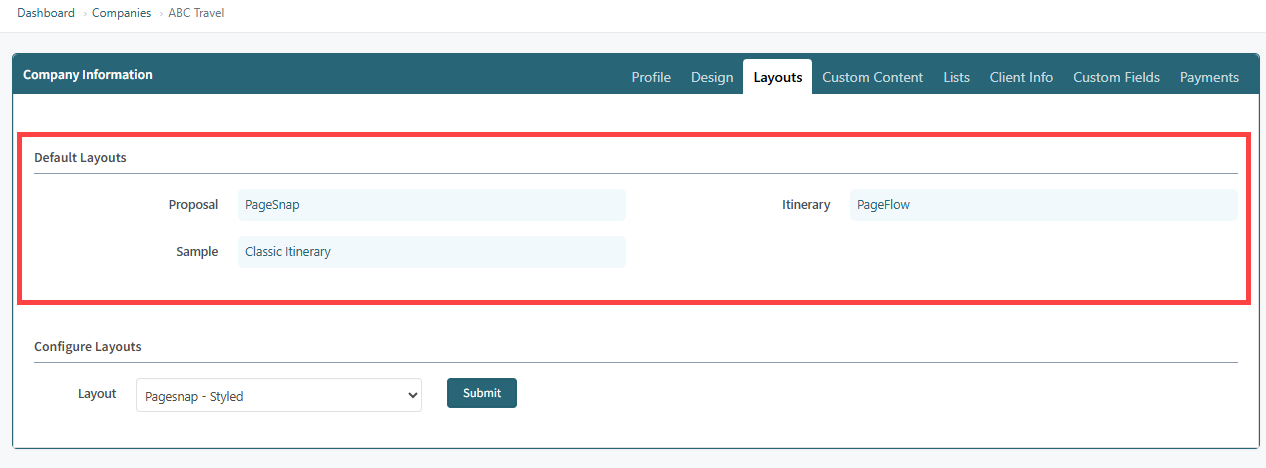
The PageSnap layout uses a clean page by page experience that snaps each section neatly into place as the viewer scrolls. The PageFlow layout offers a continuous scrolling experience similar to a standard web page. This is a great option when you want content to feel open, smooth, and easy to browse.
Both layouts support enhanced visual elements such as full screen map, full screen video, and an intro page that can be added individually to create a strong opening. You also have more flexibility to reorder or hide sections, adjust background colors or gradients, and apply subtle design choices that help highlight important details while maintaining a clean overall structure.
Step 1: Choose Your Layout
The new layout appears under a new Layouts tab in the Trip Itinerary builder. From here, you can choose which layout to apply to the Proposal, Itinerary, or Sample views.
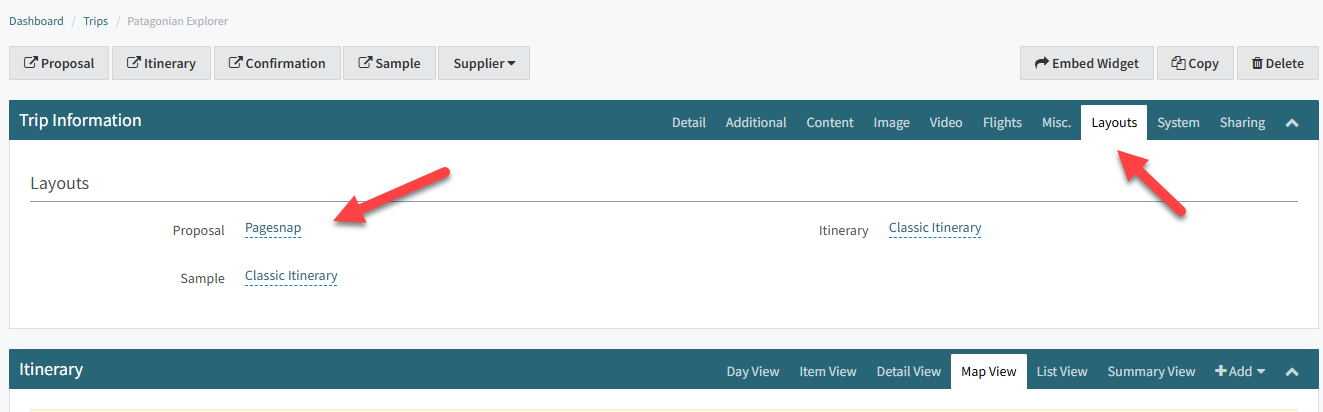
When you select a layout, you’ll now see three starting options to choose from.
PageSnap gives you the structured, page-by-page scrolling format with a simple, uncluttered look.
PageFlow offers a continuous scrolling experience, similar to a traditional web page, which is ideal if you want the content to feel seamless and easy to browse.
 | If you want to customize the look of your itineraries, you can now use the new Layouts Design page in your Company Profile settings. This page gives you control over colors, fonts, and default layout styles. Click here to check it out HERE! |
Step 2: Classic View vs. PageSnap and PageFlow Views
You can now choose between three layout formats when setting up your itinerary:
Classic Itinerary
Displays content in a continuous full-width format using the traditional layout.
Example Trip: Classic View - Patagonian ExplorerPageSnap
Uses page-by-page scrolling with a simple, uncluttered layout. Each section snaps cleanly into place, giving a structured, modern presentation style.
Example Trip: PageSnap Clean - Patagonian ExplorerPageFlow
Provides a smooth, continuous scrolling experience similar to a standard web page. This layout is ideal for itineraries that benefit from a natural, uninterrupted flow.
Example Trip: PageFlow Clean - Patagonian Explorer
Each option gives you flexibility in how you want your itinerary to look and feel, whether you prefer a traditional presentation, a structured and modern layout, or a seamless scrolling experience.
Step 3: Add Maps to Your Itinerary
Maps in the new itinerary layouts give you a more flexible and visually engaging way to showcase the geographic flow of your trip. In PageSnap and PageFlow itineraries, maps become a core visual element that can be displayed in different formats depending on the layout configuration assigned to your itinerary. These formats let you highlight routes, day by day locations, or key stops in a way that fits the overall design of your itinerary.
Each itinerary starts with a standard map placement, and the layout determines whether the map appears as a side by side element or as a full page. If you want to adjust how the map is presented, additional layout variations can be created for you at no cost. The next sections outline the standard options you will see when using maps in PageSnap and PageFlow itineraries.
For the Classic Itinerary, maps always display in a full-width format. This layout has not changed.
For PageSnap and PageFlow layouts, maps can be configured to display as a full-page map or in a side-by-side format with the Overview section. (The Overview is the same section referred to as Trip Intro in the Trip Builder.) There are three standard side-by-side map configurations:
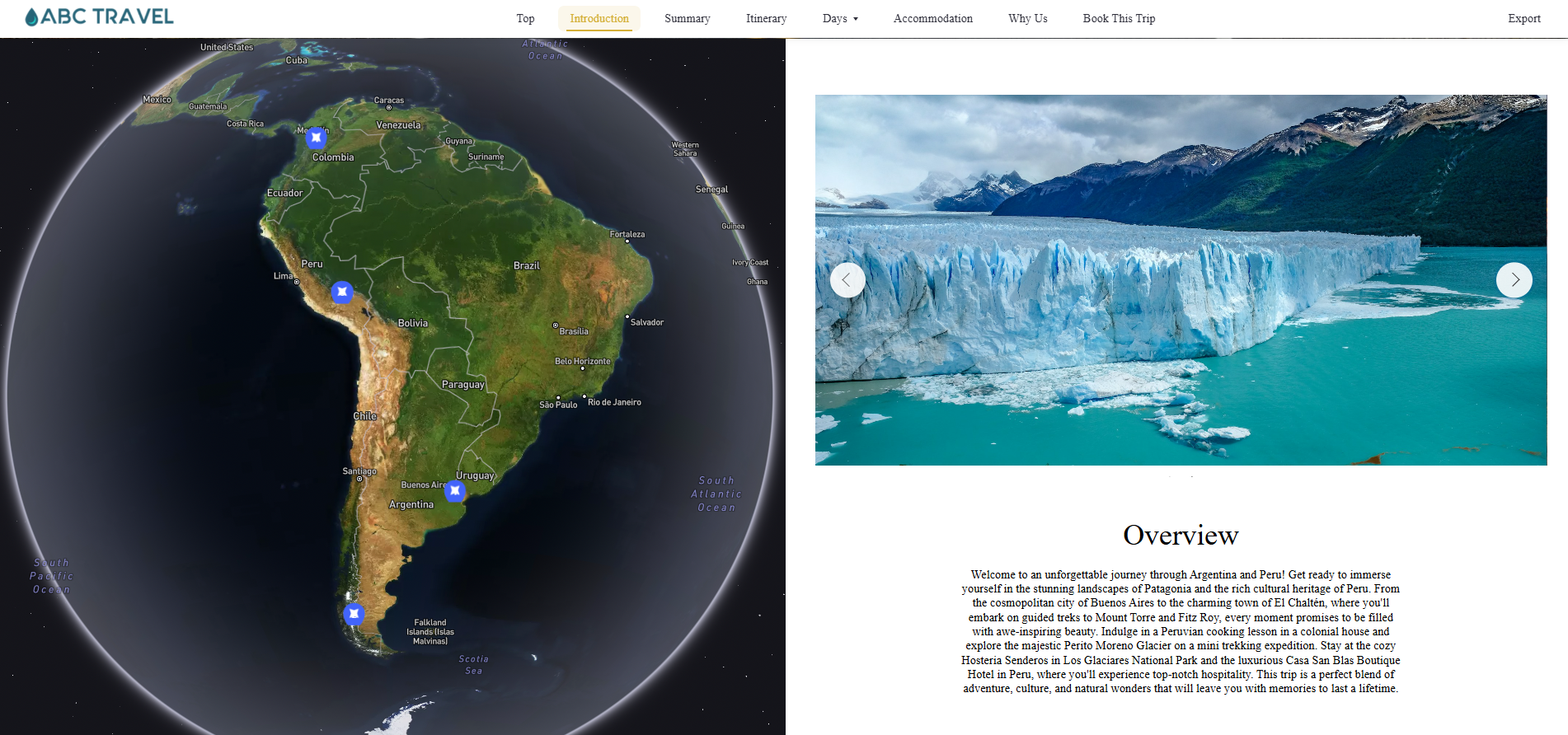
Option 1: Map on the left and the Overview on the right. This is achieved when there is only 1 Hero Image and No Video.
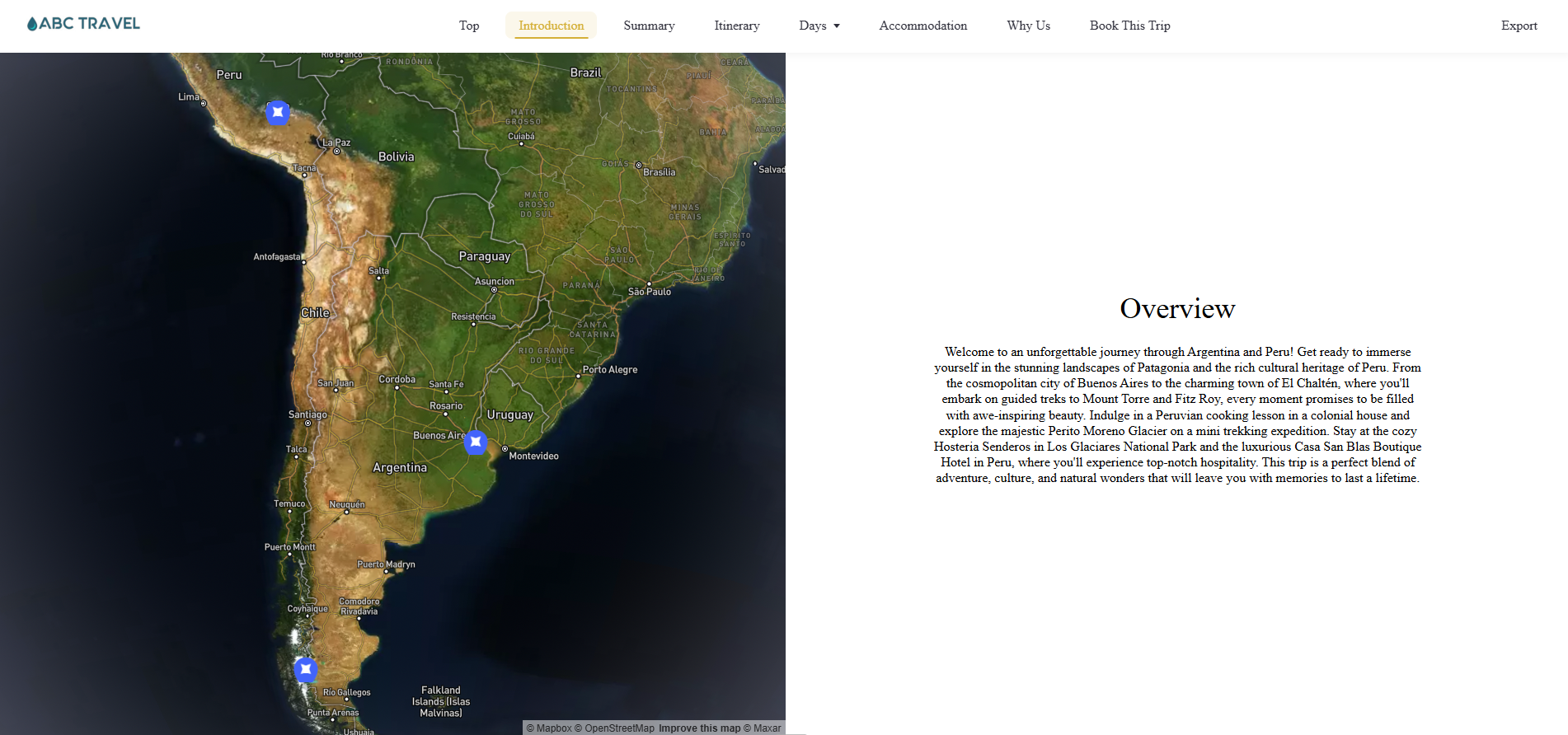
Option 2: Map on the left, Overview on the right (bottom), and a carousel of additional hero images displayed above the Overview. If more than one image is included, they will display in a scrollable carousel. (Video will show over Images if added to an itinerary).
Option 3:Map on the left, Overview on the right (bottom), and a video displayed above the Overview.
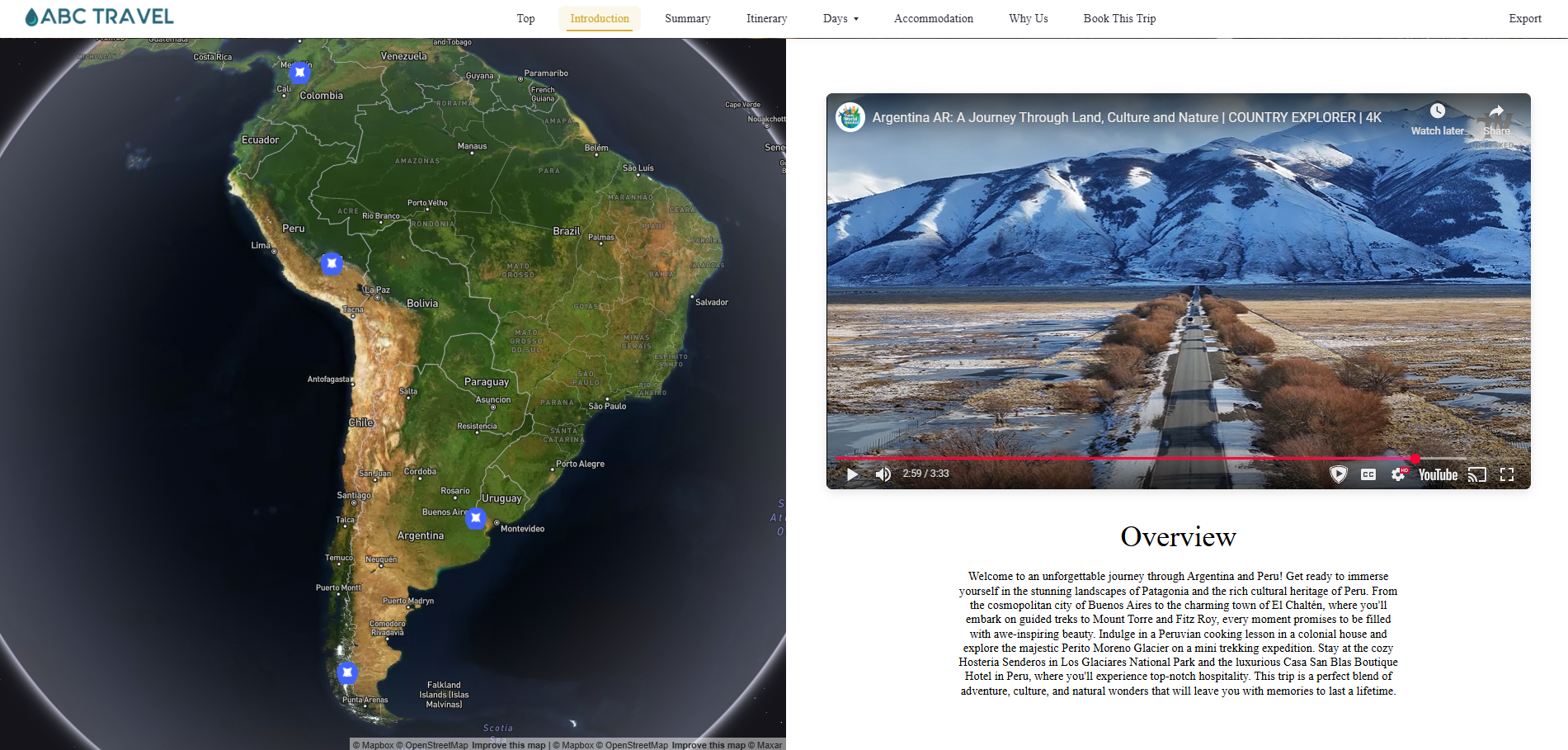
Each of these map and content arrangements is tied to a specific layout view. If you want to use one of these options in a different view, reach out to our team so we can create a new layout configuration for you.
Please note that the Maps, Videos, and the Overview can also be added as standalone pages. This gives you the flexibility to highlight key elements in a separate, full-width format if needed.
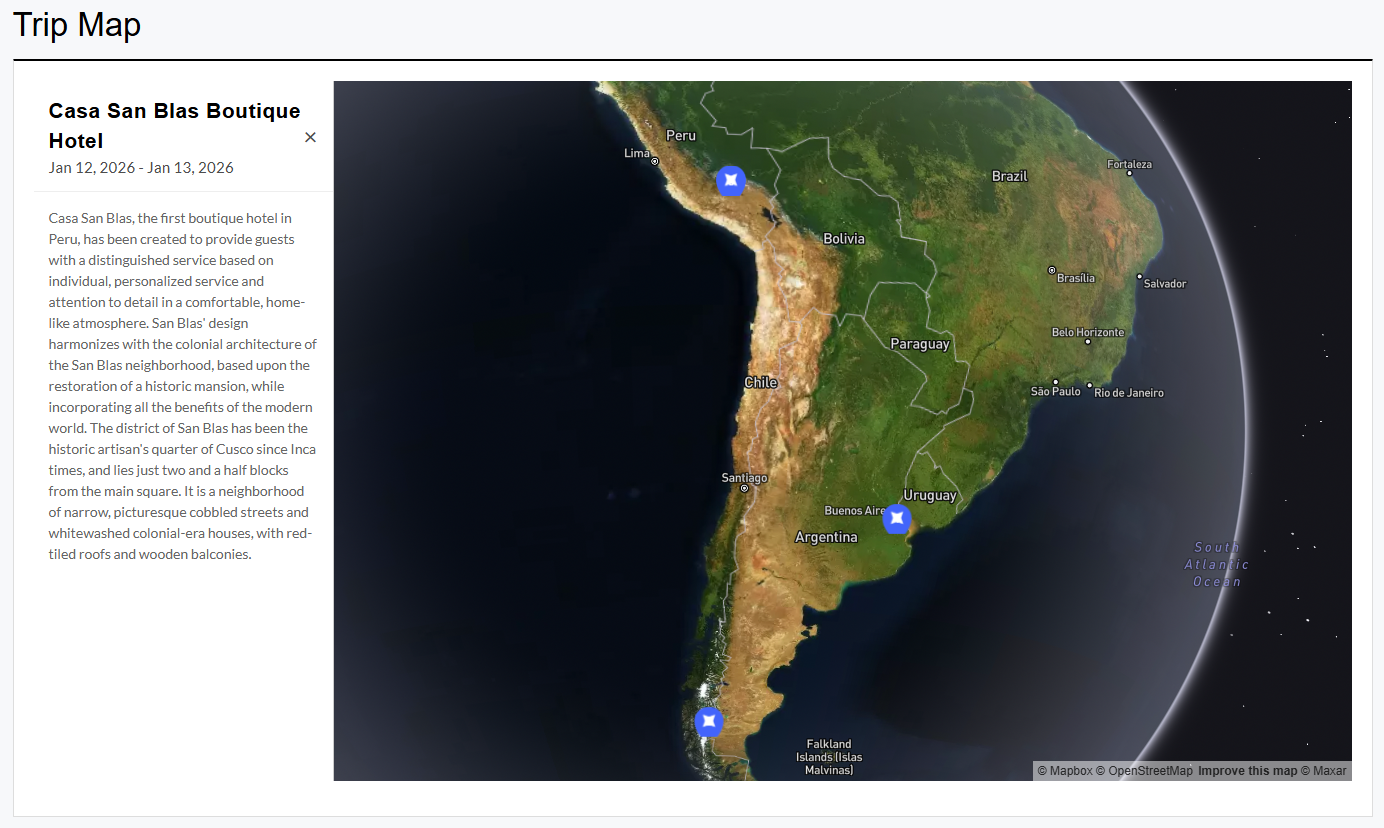
Maps can also display the Points of Interest associated with your day-by-day itinerary. When coordinates are added to each location and included on the map, those points will appear automatically. Clicking on a point of interest opens a sidebar that displays detailed information for that day, including the day number and the description for that stop. This feature makes it easy to give travelers a quick, interactive way to explore the key highlights of the itinerary.
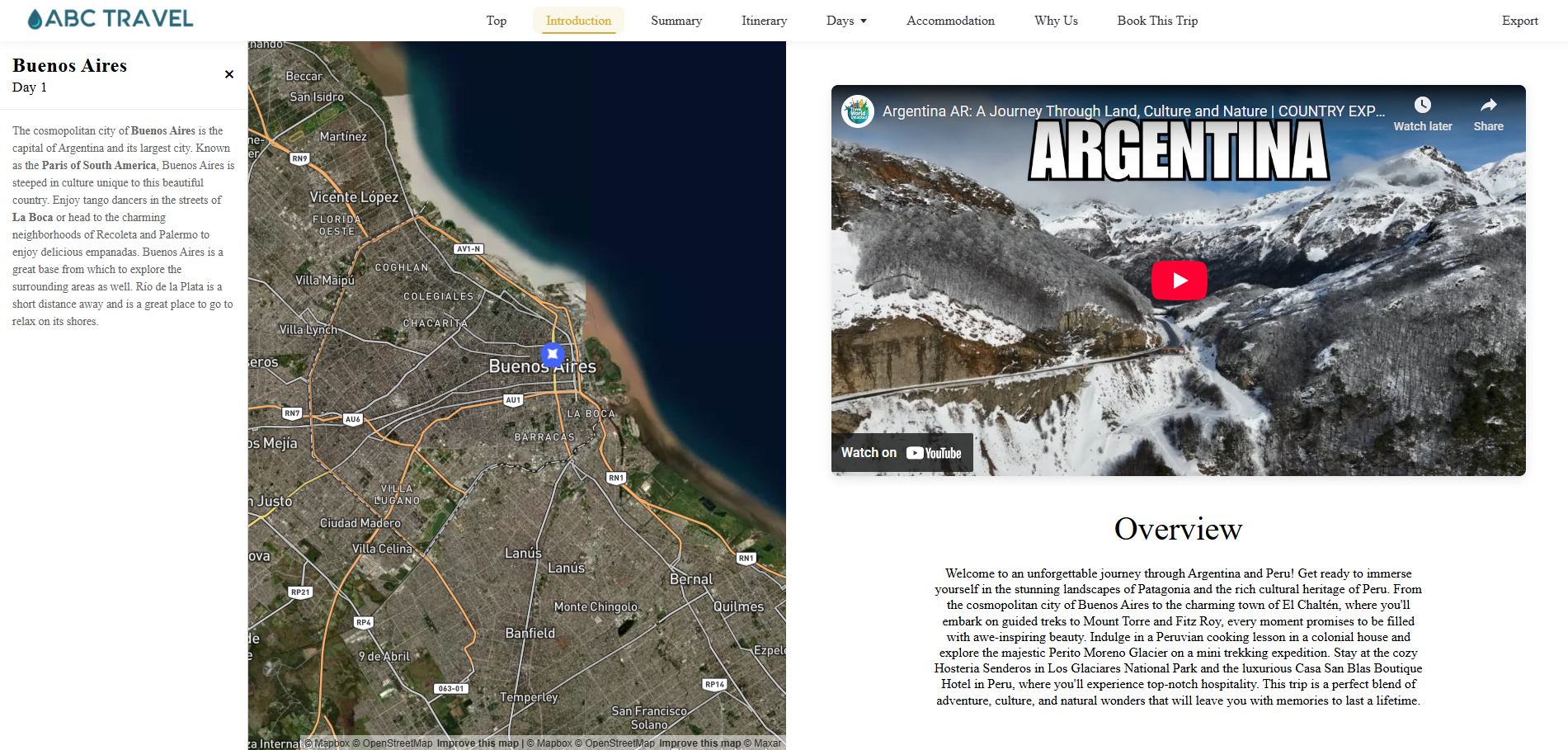
We’ll continue expanding what’s displayed in the sidebar, but for now, this is a great way to showcase specific stops and add useful context directly on the map. You can find the full steps for adding and managing maps in the article linked below.
For full steps on how to add and manage maps, see [ How to Use the Map Feature in Itineraries ]
| Note: If you want to create a more branded version of your itineraries, you can explore our Itinerary Enhancement Packages . |
Image Resolution Standards for Web-Based Itineraries
Our platform is designed to handle large, high-resolution images while automatically optimizing them for the best balance of quality and performance.
Maximum resolution: Images are currently auto-cropped and scaled down to a maximum width of 3000px.
Recommended resolution: Always upload the highest-resolution image you have available. The platform will automatically handle scaling and cropping to fit the design and device.
Minimum resolution: Images under 1200px wide may still upload, but they are not likely to display with the level of clarity expected on larger or high-resolution screens.
Hero Images (Full-Width Banner)
Best results are achieved when uploading images 3000px wide (or larger, if available).
The system will downscale them appropriately for different devices, while preserving sharpness on retina and 4K screens.
Half-Page Images (Itinerary & Accommodations)
Upload at the highest resolution you can. Even though they render at half width, larger source files ensure crispness across all devices.
As with hero images, the system trims them down to the maximum width supported.